Introduction
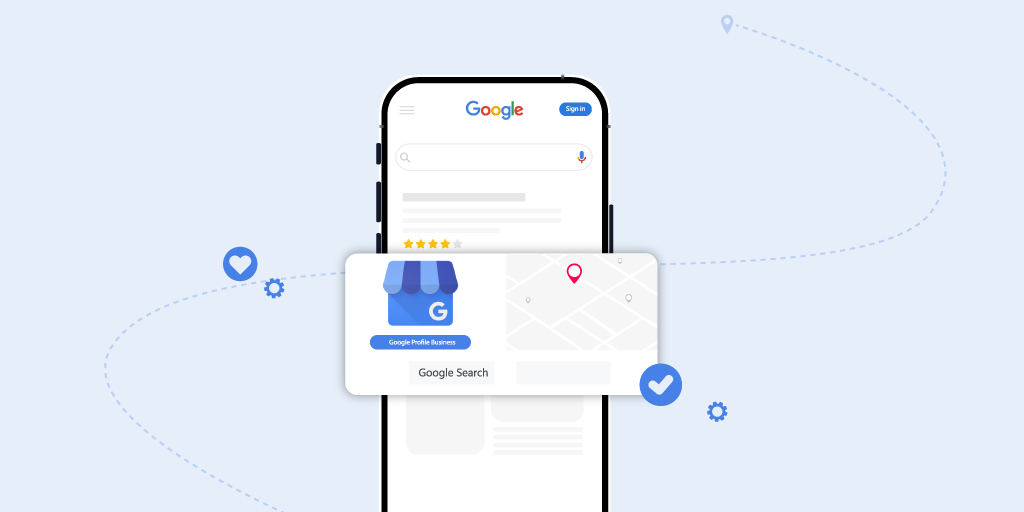
In today’s digital-first world, a strong online presence is no longer optional—it’s a necessity. For Australian business owners seeking growth and visibility, setting up a Google Business Profile (formerly known as Google My Business) is one of the most effective strategies available. Your Google Business Profile pages showcase essential business information—like your business name, business hours, service area, and contact details—directly in Google Search and Maps, ensuring your business appears in local search results and the local pack.
As a digital marketing expert in Australia, I help small and medium-sized businesses use smart marketing strategies, automation, and search engine optimisation (SEO) to scale effectively. In this comprehensive guide, I’ll walk you through how to create, verify, and optimise your Google Business Profile (GBP) while integrating tools like Google Analytics, Google Ads, and the Google My Business app to track performance and improve customer engagement.
What Is a Google Business Profile?
A Google Business Profile is a free platform that enables you to control how your business appears across Google. Whether a customer searches for your brand directly or through a related product or service, your profile connects you with potential customers in real-time. It’s part of the broader Google Business ecosystem, integrating with tools such as Google Places, Google Merchant Center, Google Business API, and Google Ads.
Your Google Business Profile dashboard lets you update business information, manage customer reviews, add photos, share posts, and monitor insights to enhance Customer Experience (CX).
Key Features of Google Business Profile:
| Feature | Description |
|---|---|
| Business Information | Display your business name, address, phone, and website URL. |
| Business Hours | Set regular, holiday, and special hours to reflect your availability. |
| Google Reviews | Collect, manage, and respond to customer reviews. |
| Photos & Videos | Add visuals showcasing your team, products, and In-store products. |
| Posts & Updates | Promote offers, Food orders, events, or Order now CTAs directly in Google Search. |
Why You Need a Google Business Profile
A Google Business Profile is the cornerstone of local SEO (search engine optimization). It improves your visibility on Google Search and Maps, helps attract local searchers, and boosts conversions.
- Visibility in Local Search: Appear in the local pack and local Google search when nearby customers look for products or services like yours.
- Customer Engagement: The Google Messages feature allows direct communication with customers. Responding to feedback on your Google Reviews strengthens trust.
- Enhanced Customer Experience: Keep accurate business hours, contact info, and service area details to avoid confusion.
- Integration with Marketing Tools: Use Google Ads, Google Analytics, and Meta Marketing Analytics to measure campaign performance and fine-tune results.
FAQ: Can I use a Google Business Profile for an online-only business?
Yes. While GBP is designed for physical or service-area businesses, online operations can specify a service area rather than a physical address.
What You Need Before You Begin
Before setting up your Google My Business Profile, gather this information:
- Business name and business category (categoría principal)
- Physical address or service area
- Phone number, email address, and website URL
- Operating hours
- Business logo and high-quality photos
Ensure NAP consistency (Name, Address, Phone) across platforms like Google Places for Business and Google Merchant Center. You’ll also need a Google account—either a free Gmail or Google Workspace account.
Step-by-Step Guide: Creating Your Google Business Profile
1. Sign in or Create a Google Account
Access or create a Google account via business.google.com/add. For team-based access, consider a Google Workspace account for shared control and reporting.
2. Access Google Business Profile Manager
Navigate to the Google Business Profile Manager dashboard and click “Manage now.” You can use an Incognito Window for security. This platform integrates with Google Gemini, Google Sheets, and Merchant Center for advanced data storytelling and campaign management.
3. Enter Your Business Name
Type your business name exactly as it appears across other directories. Avoid adding keywords—Google may suspend profiles for unnatural naming.
4. Select Your Business Category
Choose the business category that best represents your operations. This affects where you appear in Google search results and AI Overviews.
Popular Categories by Industry:
| Industry | Example Categories |
|---|---|
| Retail | Electronics Store, Clothing Store, Toy Store |
| Food & Beverage | Cafe, Restaurant, Bakery |
| Services | Accountant, Digital Marketing Agency, Cleaning Service |
Use Google Trends to research which categories perform best in your sector.
5. Add or Confirm Business Location
If you have a storefront, enter your full address and place the pin accurately on Google Maps. For service-area businesses, list your delivery or service zones instead.
FAQ: Can I hide my address?
Yes, service-based companies can hide their location and show only their service area.
6. Add Contact Information
Enter a valid phone number and website URL. This helps potential customers reach you directly and supports your SEO (search engine optimization) ranking.
7. Complete Service Areas (if applicable)
Specify the suburbs, cities, or regions you serve. This step helps your profile show up in local searchers’ results and Google Places listings.
8. Set Business Hours and Attributes
Add your business hours, including holidays and special occasions. Attributes like wheelchair accessible or veteran-owned improve inclusivity and engagement.
9. Add Business Description and Photos
Create a compelling business description that includes relevant keywords naturally. Upload professional images of your storefront, products, and staff.
| Photo Type | Recommended Size |
|---|---|
| Logo | 250 x 250 px |
| Cover Photo | 1080 x 608 px |
| Interior & Exterior | 720 x 720 px |
10. Request Verification
Choose a verification method: postcard, email, phone, video, or instant verification. Follow the perfil de negocio verification steps carefully.
11. Optimise Before Publishing
Double-check all data for accuracy, add a FAQ section, and ensure profile optimization best practices are applied. Test clickable items like your appointment URL or booking links.
After Verification: Managing Your Profile
Once verified, your Google Business dashboard becomes your central hub for updates and insights. From here, you can:
- Edit your business information, photos, and posts.
- Respond to customer reviews promptly.
- Post weekly updates, promotions, or blog snippets.
- Track engagement through Google Analytics and Key Performance Indicators (KPIs).
FAQ: How should I respond to negative reviews?
Always stay professional—acknowledge the issue, apologise if necessary, and offer a resolution. Your response to reviews shows commitment to Customer Experience.
Advanced Optimisation Tips
- Use Google Posts regularly for announcements or offers.
- Add menu or appointment URLs for faster conversions.
- Integrate Google Messages to engage directly with customers.
- Leverage Google Merchant integrations for In-store products.
- Monitor Search Generative Experience (SGE) and Google Search Generative Experience trends for evolving local search visibility.
- Analyse campaign data in Google Sheets or your Marketing profile settings for better reporting and Data Storytelling.
Common Mistakes to Avoid
- Inconsistent NAP information across directories.
- Keyword stuffing your business name.
- Ignoring Google Reviews or failing to reply.
- Neglecting to update business hours during holidays.
- Not connecting with Google Business Profile software or the Google Business API for scalability.
FAQ Section
Can I manage multiple businesses with one account?
Yes—use the Google Business Profile Manager to oversee multiple locations.
How long does verification take?
Typically a few business days, depending on your chosen method.
Can someone else manage my profile?
Yes—add managers or owners under the Google Business dashboard settings.
What if my business relocates?
Update your address, verify again, and ensure consistency across all Google properties.
Troubleshooting & Getting Help
If you experience issues, refer to Google’s Help Center or contact support through the Google My Business app. For deeper insights and Campaign Management, consult a marketing expert who can align your Google Profiles, Meta Marketing Analytics, and Content Creation with your broader growth strategy.
Summary
Creating and optimising your Google Business Profile is a critical part of any digital marketing strategy. It helps your business stand out in local Google search, connect with potential customers, and deliver an excellent Customer Experience. Regular updates, consistent branding, and strong engagement through Google Reviews will boost your credibility and search performance.
For hands-on assistance in optimising your Google My Business Profile, setting up AI-driven content strategies, or integrating analytics tools like Google Gemini and Meta Marketing Analytics, reach out to me. Let’s transform your Google Business Profile into a lead-generating powerhouse that drives measurable business growth.