Introduction
In today’s digital age, ensuring your business hours are accurately reflected online is essential for customer satisfaction, customer trust, and overall business growth. As a digital marketing consultant working with Australian business owners, I see first-hand how critical it is to maintain accurate business information across Google Search, Google Maps, and local directories. An updated Google Business Profile not only improves the customer experience but also boosts local SEO, helping your business rank higher in local search rankings. This blog will guide you through updating your hours of operation, including special hours, holiday hours, and temporary closures, while also covering advanced tips, troubleshooting, and optimisation strategies.
Why Accurate Google Business Hours Matter
When customers search for your business, they expect your hours of operation to be correct. Outdated details cause frustration, poor customer reviews, and lost business opportunities. A well-maintained Google Business Profile is central to building customer satisfaction and improving your local search visibility.
For example, medical practices with category-specific hours like lunch breaks or patient experience considerations must accurately show these times. Restaurants may use takeout hours or online service hours. If you fail to reflect these, it can mislead customers and harm your reviews and ratings.
Prerequisites and Access
Before updating your hours, ensure you have a Google Business Profile account. This platform, previously known as Google My Business, controls how your business appears across Google Search and Google Maps.
- Make sure you’re logged into the correct Google account with owner or manager management responsibilities.
- If you run multiple locations, you can use the Google bulk edit tool or integrate the GBP API and Google API for efficiency.
- Confirm your profile is live with Google Business Profile Verification, as only verified businesses can make updates.
- Access your Google Business Profile dashboard via desktop, the Google Business Profile app, or directly through Google Search.
Step-by-Step Guide to Changing Business Hours
3.1 Method 1: Via Google Search (Desktop)
- Log in to your Google account linked to your business.
- Search for your business name on Google Search.
- In your profile dashboard, click Edit profile.
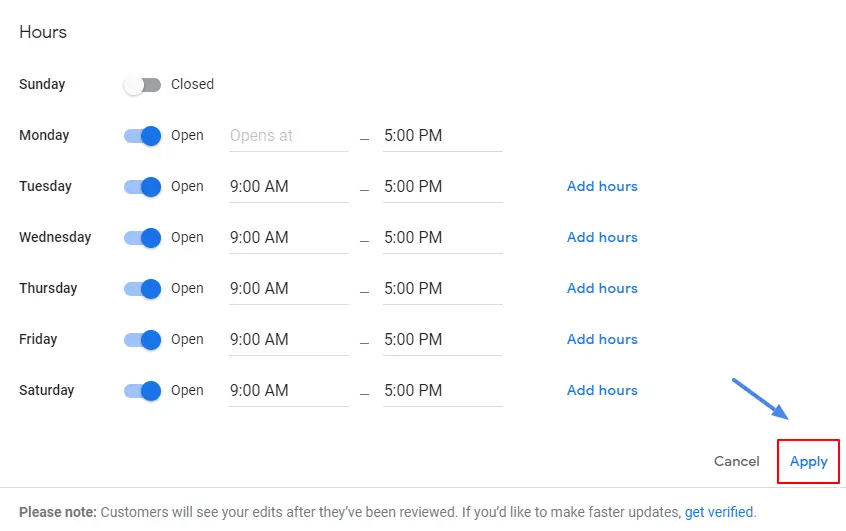
- Navigate to the Hours tab.
- Use the pen icon to edit your hours.
- Mark days as “Closed,” “Open 24 hours,” or split into multiple periods.
- Save changes and verify accuracy.
3.2 Method 2: Via Google Maps (Desktop or App)
- Open Google Maps and search for your business.
- Select Manage now from your Google Business Profile account.
- Edit hours in the Hours tab.
3.3 Setting Special Hours and Holiday Closures
- Open the Special hours or Holiday hours section.
- Add temporary business hours for public holidays, events, or temporary closures.
- Use this to temporarily adjust your operational schedule for accuracy.
Insert Table Idea: “Examples of Special Hours – Public Holidays, Scheduled Maintenance, and Short-term Events.”
Advanced Options and Troubleshooting
4.1 Split Shifts and Category-Specific Hours
- Add multiple time slots to show lunch breaks or half-day sessions.
- Particularly useful for restaurants, gyms, and healthcare businesses aiming to improve patient experience.
4.2 Open 24 Hours vs. No Main Hours
- Open 24 hours: Select for 24/7 services.
- No main hours: Works for businesses with flexible or appointment-only schedules.
4.3 Marking Businesses as Closed
- Select Temporarily Closed for renovations or short shutdowns.
- Use Permanently Closed if shutting down operations.
4.4 Editing or Deleting Hour Change Posts
- Google may automatically create Google Posts about updated hours.
- Edit or remove them to ensure your brand messaging aligns with your About Us Page and other customer communications.
Verifying and Confirming Changes
- Most business hours updates appear within hours.
- Verify your updates by checking via Google Maps or Google Search.
- Encourage feedback through the Q&A feature, and monitor user edits in your profile.
- Use tools like Google Lens to test the live view of your business hours.
Frequently Asked Questions (FAQ)
1. Can I update my hours with the Google Maps app?
Yes. The Google Business Profile app and Google Maps allow you to manage business information directly.
2. Why aren’t my edits showing?
Confirm that your changes were saved, wait for processing, and clear cache. If issues persist, contact Google My Business support.
3. How do I manage multiple locations?
Use the Google Dashboard, bulk upload tools, or partner business management services.
4. What if I forget to update holiday hours?
Your standard hours will display, risking poor customer service experiences.
5. Can I set category-specific hours (like delivery only)?
Yes. Use “More hours” to set takeout hours, delivery schedules, or in-store products pickup times.
Best Practices & Tips
- Regularly audit your Google Business Profile hours.
- Schedule seasonal updates in advance, especially before holiday seasons.
- Update cover photo, Photos with Text Content, and Menu editor where relevant.
- Highlight in-store products and Local Inventory using your Point of Sale system.
- Encourage Google reviews and monitor reviews and ratings.
- Ensure compliance with health and safety protocols.
- Use Search Console, Google Ads, and the performance overview in your dashboard to align marketing campaigns with accurate hours.
- Cross-list your business in local directories like Network Solutions’ Pro Business Directory to reinforce consistency.
Troubleshooting & Support Resources
- If locked out, confirm your Google Business Profile Verification status.
- Resolve conflicts caused by user edits by reviewing and approving updates.
- Use the Google My Business support centre for technical help.
- Explore local SEO tips and business management services for ongoing optimisation.
Conclusion
Accurate Google Business Profile hours are a cornerstone of strong local SEO and customer satisfaction. By keeping your operational schedule up to date—whether regular hours, holiday hours, or temporary business hours—you build customer trust, improve your local rankings, and protect your reputation through positive Google reviews. If you’re a business owner looking to streamline updates, optimise business directories, and enhance your digital presence, I can help. From setting up Google Business Profiles to integrating tools like GBP API, Google Ads, and Search Console, I provide tailored support for Australian businesses aiming to scale.