Introduction
Google Ads is one of the most effective ways for Australian businesses to reach new customers and grow revenue. By promoting your products and services across the Google Ads network—including search, display, shopping, and video—you can access a wide pool of potential clients. Features such as Customer Match, remarketing lists, and dynamic product feeds make it a powerful tool for scaling campaigns. However, there are times when business owners choose to stop using Google Ads due to budget constraints, changes in strategy, or moving to other platforms. This guide provides a comprehensive step-by-step approach to cancelling your Google Ads account, ensuring you understand the setup procedure, cancellation process, and key considerations before you act.
Prerequisites for Canceling Google Ads
Before initiating the cancellation, ensure you have:
- Administrative Access: Only users with full Account access can cancel accounts. If you’re not an admin, you may need to Remove Access for others or request it from your manager account administrator.
- Billing Setup: Confirm your billing setup is active and that all billing information is up to date.
- Payment Method: Be aware of your linked payment method, final invoices, and any promotional credits that may apply.
- Google Account Credentials: Ensure you can log into the correct Google account associated with the Google Ads profile.
Tip: If you are part of a manager account, coordinate with your account administrator before attempting to cancel or Delete Account access.
Step-by-Step Guide: How to Cancel Your Google Ads Account
Step 1: Log in to Your Google Ads Account
Visit the Google Ads homepage (ads.google.com) using your credentials. This will take you to the Google Ads website control panel. Use Google Chrome for best performance and disable pop-up blockers.
Step 2: Navigate to Account Settings
Click the Tools & Settings (spanner icon) in the top-right corner. Under “Setup,” select Account Settings.
Step 3: Access Account Status
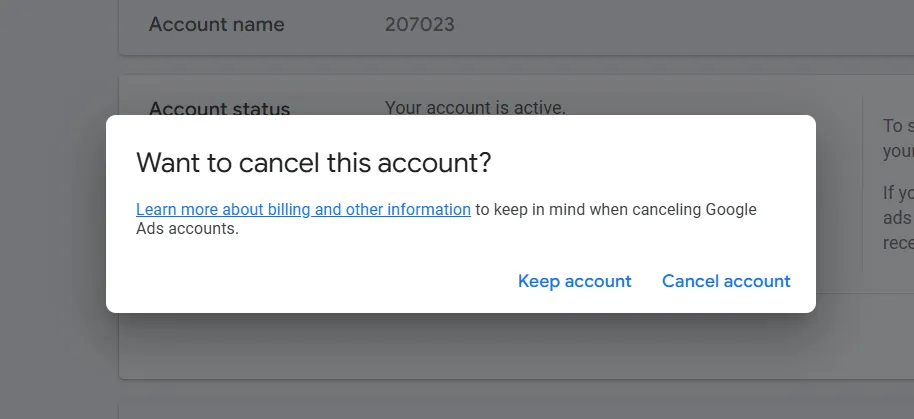
In the control panel, select Account Status. This section allows you to cancel the account. Look for the Delete Account option, which may be indicated by a delete icon or garbage bin icon.
Step 4: Confirm Cancellation
Follow the on-screen prompts to cancel your account. Double-check the billing month to ensure all charges are accurate. Finalise by confirming the cancellation process.
Quick Checklist
- Log in to your Google Ads account.
- Open Tools & Settings.
- Navigate to Account Settings.
- Select Account Status.
- Click Delete Account (or the garbage bin icon).
- Confirm cancellation.
Table: Canceling vs. Pausing Campaigns
| Action | What Happens | Billing Impact | Can Be Reversed? |
|---|---|---|---|
| Cancel account | All ads stop, account deactivated | Final bill issued for charges | Yes |
| Pause campaigns | Ads paused only, account remains active | No further charges | Yes |
Before You Cancel: Key Considerations
- Export Campaign Data: Save reports of performance metrics, click-through rates, and conversion data. These can be accessed via the Google Ads dashboard.
- Review Remarketing Assets: Download your remarketing lists and customer match lists so they can be reused in future campaigns.
- Pause Campaigns: Consider pausing campaigns rather than cancelling outright if you plan to resume in the near future.
- Outstanding Balances: Ensure all bills tied to your payment method are cleared. Review your billing month for accuracy.
- Promotional Credits: Be aware that cancelling may affect the eligibility of any promotional credits.
Pre-Cancellation Checklist
- Export all campaign reports.
- Save remarketing and customer match lists.
- Pause or end active campaigns.
- Check outstanding balances and promotional credits.
What Happens After Cancellation?
- Campaigns Stop: Ads will stop running within 24 hours.
- Billing Information: You’ll receive a final invoice. Refunds may apply if there are unused funds or promotional credits.
- Data Retention: Campaign history, remarketing lists, and customer match lists are usually retained for future use if you reactivate the account.
- Reactivation: You can contact Google Ads support or a Google Ads specialist to reactivate your account later.
Alternatives to Canceling a Google Ads Account
- Pause Campaigns: Keep the account active but stop ads temporarily.
- Budget Adjustments: Lower your daily spend or bids instead of fully cancelling.
- Seasonal Strategy: If you only advertise seasonally, pause campaigns and restart them later.
Special Circumstances
- Manager Accounts: If your profile is managed under a manager account, only the administrator may have authority to Remove Access or cancel.
- Third-Party Agencies: If your account is managed by an agency, follow their cancellation process.
- Permissions Errors: If you cannot find the option to cancel, check your Account access permissions in the settings.
Frequently Asked Questions
1. Can I reactivate later?
Yes, reactivation is possible by contacting Google Ads support. Your data, customer match lists, and remarketing lists remain available.
2. Will I lose my campaign history?
No, historical performance metrics are retained. Export reports for your records.
3. How do refunds work?
Refunds for unused balances or promotional credits are processed back to your payment method within weeks.
4. What if my account is agency-managed?
Agencies often use a manager account. Contact them to initiate the cancellation or Remove Access.
5. How long does cancellation take?
Typically within 24 hours. You can verify the status on the Google Ads website under Account Status.
Troubleshooting & Support
- Errors: If you encounter issues, check permissions, confirm your Google account, and ensure your billing details are current.
- Support: For ongoing issues, contact Google Ads support via the Google Ads website or work with certified Google Ads specialists. Refer to related articles in the Help Centre for extra guidance.
Conclusion
Cancelling Google Ads is a straightforward process when you have the right account access, billing clarity, and preparation. By following the steps above, you can cancel confidently while protecting your performance metrics, remarketing lists, and customer match lists for future use. Whether you pause, adjust budgets, or fully cancel, it’s important to align this decision with your broader growth strategy. If you’re uncertain, consulting with a Google Ads specialist can help you make the right call for your business.