Introduction
In the current digital landscape, Google reviews have become a cornerstone for local businesses looking to improve their online reputation and local search rankings. These user-generated content pieces influence trust, customer experience, and even search engine rankings, making them vital for growth. This guide is tailored for Australian business owners, helping you understand the Google review process, leverage Google Maps, and implement best practices to enhance your business visibility.
Whether you run a Geelong-based plumber, a retail store, or a service provider like Better Living Home Care, this guide will cover how to collect, manage, and respond to Google reviews efficiently while integrating them into your local SEO strategy.
Understanding Google Reviews and Their Importance
Google reviews are feedback left by users on a Google Business Profile or Google Maps listing, accessible via Google Search or the Google Maps App. Positive reviews contribute to higher SEO rankings, better local search rankings, and can influence prospective customers.
Benefits of Google Reviews
- Credibility & Trust: Boosts customer trust and business credibility.
- SEO & Local SEO Signals: Positive reviews contribute to local search engine optimization.
- Customer Feedback: Provides actionable insights for improving customer experience.
- Google Seller Ratings: Visible in Google Ads and Google Local Services Ads.
How Reviews Influence Search
Google reviews impact search engine rankings through review volume, star ratings, and engagement metrics. Businesses with more positive reviews tend to appear higher in Google search results and Google Maps listings.
How Customers Can Leave a Google Review
Collecting reviews starts with educating customers on how to leave one. The process is simple for users with a Google account.
Step-by-Step Guide
- Sign in to Google: Ensure your customer is signed in to their Google account.
- Search for the Business: Use the search bar in Google Search or open Google Maps.
- Access the Business Profile: Click on the business’s Google Business Profile.
- Click “Write a Review”: Users select the star rating and write detailed feedback.
- Add Photos & Videos (optional): Upload photos to enrich the review.
- Submit Review: The review will appear following Google’s review moderation.
Tips for Effective Reviews
- Be specific about services used.
- Focus on customer experience.
- Keep it honest to adhere to review policies and avoid policy violations.
Quick Comparison Table: Leaving Reviews via Search vs. Maps
| Feature | Google Search | Google Maps App |
|---|---|---|
| Accessibility | Easy | Easy |
| Additional Features | N/A | Directions, Nearby Places |
| Visual Interface | Text-based | Map-based |
Creating and Sharing a Google Review Link
A Google review link simplifies the review process for your customers and increases review volume.
What is a Google Review Link?
A review link directs customers straight to your review form on Google Maps or Google Search, allowing them to leave feedback quickly.
Methods to Generate a Google Review Link
- Google Business Profile Dashboard: Use the Ask for reviews feature.
- Place ID Finder Tool: Advanced method for generating a review link.
- Google Search URL: Copy the business profile URL.
Step-by-Step Guide
- Dashboard Method: Log into your Google Business Account, navigate to Ask for Reviews, and copy the link.
- Place ID Finder: Find your Place ID, create the review URL, optionally use URL shortening tools.
- Google Search Method: Copy the URL of your Google profile from the search bar.
Table: Methods to Create a Google Review Link
| Method | Best For | Difficulty | Requirements |
|---|---|---|---|
| Google Business Profile | All Owners/Managers | Easy | Business Profile Access |
| Place ID Finder Tool | Advanced Users | Medium | Google Dashboard |
| Google Search URL | Everyone | Very Easy | Web Browser |
Adding a Google Review Button to Your Website
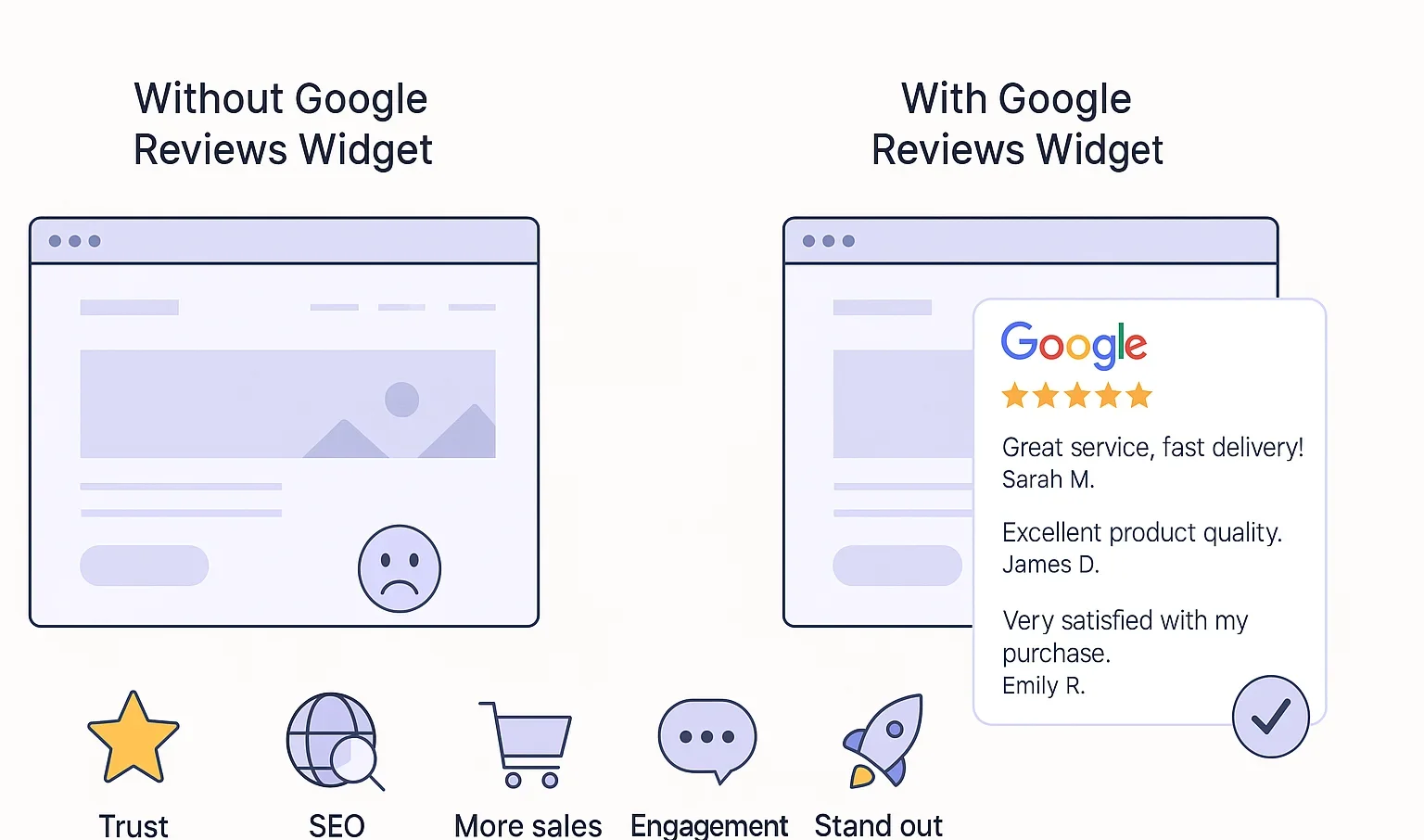
Embedding a Google review widget on your site boosts review requests, engagement, and website traffic.
Methods
- Manual HTML Button: Insert your review link into an HTML button.
- Plugins: For WordPress, use plugins like WP Google Review Slider.
- Google Places API: Developers can integrate reviews dynamically for enhanced interaction.
Table: Website Review Button Integration
| Method | Technical Skill Needed | Flexibility | Works On |
|---|---|---|---|
| Manual HTML | Low | High | Any Website |
| Plugin | None | Medium | WordPress Sites |
| API | High | Very High | Custom Setups |
Tips
- Use QR Codes on physical media to guide users to review forms.
- Track review volume and responses with Google My Business Insights.
Best Practices for Requesting Reviews
- Timing: Ask immediately after a positive customer experience.
- Personalization: Tailor messages using platforms like Customer Communication Platform.
- Channels: Email campaigns, SMS, social media.
Example Templates
- Email/Google Review Email Campaign: “Thank you for choosing us! Please share your experience here: [Google Review Link]”
- In-Person: “Would you mind leaving us a Google review? Your feedback helps us improve.”
- SMS: “We value your opinion! Leave a review here: [Shortened URL]”
Legal Considerations
- Avoid incentivizing reviews to comply with content policy and prevent policy violations.
- Ensure review requests respect review policies.
Managing and Responding to Google Reviews
Managing Google Review responses is crucial for maintaining online reputation.
Tips for Responding
- Positive Reviews: Thank the customer and reinforce loyalty.
- Negative Reviews: Apologize, offer solutions, and follow review moderation guidelines.
- Spam Reviews: Use the report review or flag as inappropriate options.
Additional Features
- Edit Review: Customers can update feedback.
- Delete Review: Customers may remove reviews following Google review deletion policies.
- Track insights via Google My Business Insights.
- Use Response Assistant or Auto-Text Reviews for streamlined communication.
Common Issues and Troubleshooting
- Missing Reviews: Delayed by Google review process moderation.
- No “Write a Review” Button: Confirm verification of Google Business Profile.
- Broken Review Link: Use correct Google review shortcut or QR Code.
- Policy Violations: Follow Google review guidelines.
Frequently Asked Questions
- Can I generate review links for multiple locations?
- Yes, each location has its unique Google review link.
- Are reviews posted immediately?
- No, they undergo moderation via the Google reviews platform.
- Can I edit or delete my review?
- Yes, users can follow Google review editing or Google review deletion procedures.
- How to report fake or inappropriate reviews?
- Use the report review or flag as inappropriate functions on Google Maps listing or Google Business Profile.
- How can I enhance local SEO with reviews?
- Collect high-quality reviews, respond professionally, and use structured data with Google review widget.
Resources and Further Reading
- Google Help Article
- Google Maps Platform Documentation
- Explore feedback analysis, review reporting, and advanced review management tools.
Call to Action
Leverage Google reviews to strengthen your online reputation and local search rankings. Encourage review requests, embed Google review widgets, monitor review volume, and respond professionally using tools like QR Codes, URL shorteners, and Google Review responses. Begin transforming your local business today with a stronger Google Business Profile, higher SEO rankings, and better customer feedback analysis.