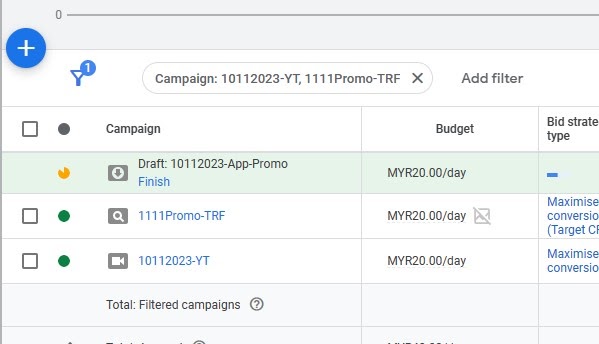
As a digital marketing and automation consultant working with Australian businesses, I know that effective campaign management in Google Ads is essential for growth and scaling. One area that often causes confusion is how to handle a draft campaign. While these are useful for planning and experimentation, they can quickly clutter your Drafts page and make navigating the all campaigns page difficult. This comprehensive guide explains what draft campaigns are, why you may want to delete them, and how to do so properly.
Introduction
Within Google Ads, a campaign draft serves as a planning and testing ground for advertisers. Drafts allow you to prepare and edit an Ad Campaign without activating it immediately. This is especially helpful for businesses experimenting with the Search network, Display network, or preparing different bidding strategy setups. However, over time these drafts can pile up, leading to confusion and mistakes. Knowing how to perform draft deletions (including multiple deletions) is an important part of streamlined campaign management.
What Are Draft Campaigns in Google Ads?
Draft campaigns are preliminary versions of campaigns designed for:
- Planning & Strategising: Test new approaches across the Search network or Display network without launching.
- Experiment Campaign Setup: Prepare changes before launching a full base campaign into a live experiment campaign with a defined traffic split percent.
- Unfinished Campaigns: Drafts often include incomplete Budget & Schedule settings or Retargeting audience adjustments.
Key differences:
- Draft campaigns are inactive.
- Campaign Experiments use a draft tied to a base campaign to split traffic and test changes live.
Why You Might Want to Delete a Draft Campaign
Deleting a draft campaign helps you:
- Stay organised: Avoid clutter on the all campaigns page and keep the Main menu navigation clean.
- Reduce mistakes: Prevent accidentally launching campaigns with incorrect Bid strategy, Ad Group structures, or even policy-violating ads.
- Prevent technical issues: Excess drafts can create confusion when managing campaigns via Google Ads API, AdWords API, or when integrating with client libraries and AI assistants.
Where to Find Draft Campaigns in Google Ads
Draft campaigns aren’t always obvious to locate. Here’s how:
- From the Main menu, navigate to the Overview Page.
- Use the Close search option to quickly find the right campaign.
- Scroll to the Draft Campaigns section.
| Area | Shows Drafts? | Purpose |
|---|---|---|
| Drafts Tab | No | Used for making changes to an existing base campaign |
| Overview Section | Yes | Location where actual draft campaigns are listed |
📌 Tip: Use your campaign ID to verify which draft you’re about to delete for accuracy.
Step-by-Step Guide: How to Delete a Draft Campaign
Step 1: Log in to Google Ads
Confirm you have permissions for draft creation and draft deletions.
Step 2: Go to Campaigns/Overview Page
From the all campaigns page, use the Main menu or Close search to navigate.
Step 3: Locate Draft Campaigns Panel
Scroll down to find the Drafts page section that shows all drafts tied to different Ad Groups or campaigns.
Step 4: Select Draft(s) to Delete
Hover over the draft. This reveals the delete option (“Remove” button).
Step 5: Remove/Discard Drafts
Click “Remove” and confirm, or use Edit → Discard Drafts for multiple deletions.
Step 6: Confirm Removal
Refresh your browser or re-log into Google apps to ensure the draft is gone from your detailed table.
📌 Placeholder: Screenshots for each step to be added.
Troubleshooting & Common Issues
- Draft not visible: Double-check you’re on the Drafts page, not just the Drafts Tab. Interface updates in Google apps may move items.
- Draft won’t delete: Clear your browser cache, refresh, or log back in.
- Remove button missing: Hover over the draft or ensure you’re not looking at an active experiment campaign instead.
- Technical errors: Sometimes linked to the Google Ads API, field mask settings, or logging via response log.
FAQs
- What happens if I delete a draft campaign—can I recover it?
No. Draft deletion is permanent. - What’s the difference between draft campaigns and experiment campaigns?
A draft campaign is inactive. An experiment campaign splits traffic with a base campaign and uses a traffic split percent to test. - Can I delete multiple drafts at once?
Yes. Use Edit → Discard Drafts for multiple deletions. - Is deleting a draft the same as removing a live campaign?
No. Drafts don’t impact live campaigns, and no ad policy checks are needed. - What if the steps don’t work for my account?
Check permissions, watch for Google apps updates, or send feedback via the platform.
Advanced: Using Scripts to Remove Drafts and Experiments
If you’re a technical user, you can automate draft deletions and experiment removals with Google Ads Scripts:
experiment.remove(); // Removes an experiment campaign. Irreversible.
⚠️ Use scripts carefully with a field mask and correct campaign ID to avoid removing the wrong campaign.
Pro Tips for Better Draft Management
- Regular cleanup: Schedule time for draft management using reminders or quick resumes.
- Naming conventions: Use clear names for draft creation so they’re easy to identify later.
- Don’t delete too soon: Some drafts can be finalised and repurposed as email templates or for internal Campaign Feedback.
- Stay compliant: Always check for potential policy-violating ads before finalising or deleting.
Conclusion & Next Steps
Deleting a draft campaign in Google Ads is straightforward, but it’s an essential part of keeping your campaign management efficient. A clean Drafts page ensures you’re focused on the right Ad Campaigns and reduces the risk of errors. Whether you’re testing a new Bid strategy, creating an experiment campaign, or managing a base campaign, staying organised makes a huge difference.
👉 If you’re an Australian business owner looking for expert help with Google search ads, scaling, or advanced automation, get in touch. I’ll help you turn your ad spend into growth.
Further Resources:
- Google Ads Help Center – For FAQs and Community content.
- Google Ads Community – To ask questions and send feedback.
- Google Ads Contact Us – For direct support.