Introduction
In the competitive world of digital marketing, effective Google Ads campaign management can make or break your advertising success. For Australian business owners looking to maximise results, understanding and applying negative keywords is essential. Negative keywords are the foundation of cost-efficient ad campaigns, helping ensure your ads are displayed only to relevant user searches. By filtering out irrelevant search queries, you improve campaign performance, enhance your Click Through Rate (CTR), and optimise your conversion rate.
In this expanded guide, we’ll explore how to use negative keyword lists, manage match types, and leverage the Google Ads UI and Google Ads API for powerful results. You’ll learn how to:
- Understand what negative keywords are and why they matter
- Apply them at the campaign level and Ad Group Level
- Use negative keyword match types (broad, phrase, and exact matches)
- Build and manage shared sets and campaigns lists
- Enhance performance across different campaign types, including Shopping campaigns, Performance Max Campaigns, and TrueView campaigns
Understanding Negative Keywords
What Are Negative Keywords?
Negative keywords are terms or phrases that prevent your ads from appearing when certain search queries are made. This is vital in content targeting and content exclusions, ensuring that your ad spend is used effectively on qualified traffic. For example, if you sell luxury watches, you may want to exclude words like “cheap” or “free” to avoid clicks from users not aligned with your offer.
Why Negative Keywords Matter
- Ad Relevance: Helps your ads align with user intent and relevant Search keywords.
- Click-Through Rate (CTR): Reduces irrelevant impressions and improves CTR.
- Conversion Rate: Focuses your budget on qualified users more likely to convert.
- Ad Spend Efficiency: Prevents wasted budget on irrelevant search terms.
- Quality Score: Increases your ad quality by improving engagement on landing pages.
| Keyword Type | Functionality |
|---|---|
| Regular Keywords | Trigger ads when included in relevant search queries |
| Negative Keywords | Prevent ads from showing for unwanted search terms |
How Negative Keywords Fit into a Digital Marketing Plan
Incorporating negative keywords into your digital marketing plan strengthens brand awareness, ensures optimal campaign targeting, and improves ad expenditure control. For PPC Managers, they’re indispensable tools for reducing campaign failure and optimising every advertising dollar.
Negative Keyword Match Types
Understanding negative keyword match types is essential for precise control over when your ads appear. Each match type—broad match, phrase match, and exact match—plays a distinct role in refining your targeting.
1. Negative Broad Match
Your ad won’t show if all the words in your negative keyword appear in a user’s search, regardless of order.
Example: Negative keyword: cheap flights → Your ad won’t show for “flights cheap deals” or “cheap international flights”.
2. Negative Phrase Match
Your ad will be blocked if the exact phrase appears in the user’s search term.
Example: Negative keyword: cheap flights → Your ad won’t show for “cheap flights to Sydney” but could still show for “low-cost flights”.
3. Negative Exact Match
Your ad won’t show if the user searches for that exact term with no additional words.
Example: Negative keyword: cheap flights → Your ad won’t show only for “cheap flights”.
| Match Type | Example Search Query | Ad Displayed? |
|---|---|---|
| Broad Match | “flights cheap deals” | No |
| Phrase Match | “cheap flights to” | No |
| Exact Match | “cheap flights” | No |
Benefits of Using Negative Keywords
Why Every Google Ads Account Needs Them
Implementing negative keywords across your Google Ads account ensures precise targeting, better analytics, and improved budget management. Here’s how they enhance performance:
- Optimised Ad Spend: Spend only on relevant clicks that drive conversions.
- Improved Campaign Performance: Avoid traffic from irrelevant or misleading search queries.
- Cleaner Data: Refine analytics from the search terms report and Search Terms Report.
- Brand Protection: Prevent your ads from appearing for inappropriate or competitor-related search keywords.
Pro Tip: Use the Negative Keywords Tool in Google Ads Editor to quickly apply bulk updates across multiple ad groups or campaign types.
Adding Negative Keywords in Google Ads
Step-by-Step Guide via the Google Ads UI
1. Campaign Level:
- Log into your Google Ads account.
- Select a campaign.
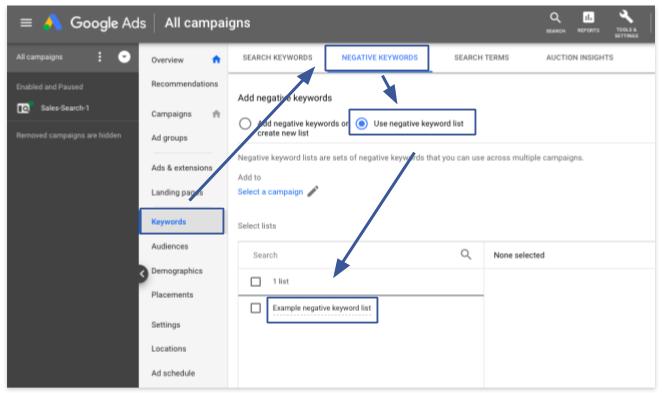
- Navigate to Keywords → Negative Keywords.
- Add your chosen negative search keywords.
2. Ad Group Level:
- Select the specific ad group.
- Follow the same steps to add negative keywords relevant to that ad group.
3. Account Level:
- Use Shared Library → Negative Keyword Lists to create lists applicable across campaigns.
- Apply them globally for consistent exclusions.
4. Using Google Ads Editor:
- Select Make Multiple Changes or Bulk Change Action to upload negatives from an Excel sheet.
- If needed, use Revert and Cancel to undo changes.
Researching and Identifying Negative Keywords
Finding Negatives Effectively
- Search Term Report: Review which queries trigger your ads. Add irrelevant ones as negatives.
- Keyword Research Tools: Use Google Keyword Planner or SEMrush to identify low-value keywords.
- Performance Data: Analyse conversion rate and Click Through Rate to remove underperforming traffic.
- Team Input: Consult sales or customer service teams for real-world search insights.
- Google Ads API Reference: For developers, automate keyword identification through the Google Ads API or AdWords API.
Best Practices and Mistakes to Avoid
Best Practices
- Regularly review and refine your negative keyword lists.
- Avoid over-filtering—ensure you’re not blocking high-intent positive counterparts.
- Align exclusions with campaign types (Search, Display Network, Shopping, and Smart display campaigns).
- Use Content API for Shopping or Merchant API to automate feed exclusions.
- Keep a structured campaign selection process to avoid overlap in shared sets.
Common Mistakes:
- Forgetting to apply negatives at all levels (campaign, ad group, and account).
- Adding irrelevant negatives that limit traffic.
- Ignoring negative keyword conflicts in Microsoft campaigns or Microsoft Ads.
Advanced Strategies for Campaign Management
Pro-Level Optimisation
- Shared Negative Keyword Lists: Manage negatives centrally via Shared Library.
- Google AI Integration: Use Google’s AI to predict irrelevant user searches and automate exclusions.
- Cross-Platform Campaigns: Sync negative lists across Performance Max Campaigns, Shopping campaigns, and TrueView campaigns.
- Exclusion Lists: Create structured exclusion lists for different campaign types and goals.
- Keywords & Targeting Alignment: Ensure your negatives complement your main Keywords & Targeting strategy.
Real-World Case Studies
| KPI | Before Negatives | After Negatives |
|---|---|---|
| Click Through Rate | 2.5% | 3.9% |
| Cost Per Conversion | $45 | $33 |
| Ad Spend Efficiency | 70% | 85% |
Example 1: A national eCommerce retailer used shared negative keyword lists and improved CTR by 56%.
Example 2: A Sydney-based service provider reduced ad spend by 18% using a structured negative keyword system through the Google Ads API.
Example 3: A small business applying negatives in Performance Max Campaigns boosted conversions while reducing wasteful broad matches.
Troubleshooting & FAQ
1. Why do irrelevant searches still trigger my ads?
Check your negative match types and confirm your negatives are correctly applied across all campaign types.
2. Can I use the same negative list in multiple campaigns?
Yes, by using Shared Library or syncing via the Google Ads API.
3. Do negatives impact my Quality Score?
Indirectly—they enhance CTR and ad relevance, leading to a better Quality Score.
4. How often should I review my negatives?
At least monthly or after major campaign management updates.
5. Can I use negatives in Shopping or Display campaigns?
Yes—through Content API, site category options, and product feed settings.
Resources & Further Reading
- Google Ads Help: Negative Keywords
- Google Ads API Reference
- Learn from the AdWords API, Content API for Shopping, and Merchant API for advanced automation.
- Study Google Ads Editor tutorials for efficient bulk management.
- Watch YouTube captions tutorials to explore campaign targeting tips.
Conclusion
Using negative keywords strategically can dramatically improve your Google Ads campaigns. From optimising match types and managing negative keyword lists to leveraging the Google Ads API and Google Ads UI, effective use of negatives ensures your ad spend is focused, your brand awareness grows, and your conversion rate improves.
For Australian business owners ready to elevate their PPC campaigns, consider partnering with an experienced PPC Manager. Together, we can implement data-driven campaign targeting, reduce wasted ad expenditure, and boost your overall digital marketing ROI.